Open Settings (the gear icon top-right of the home screen) → Backup.
Export
Tap Export All Cards. Choose where to save the file — iCloud Drive, Files, AirDrop, anywhere iOS lets you save documents. The file extension is .scandiobackup. Logos are embedded as compressed images.
Import
Two ways:
- Settings → Import Cards — pick a
.scandiobackupfile from Files. - Tap a
.scandiobackupfile in Files, Mail, or after AirDrop — iOS launches Scandio with the import already started.
Duplicates
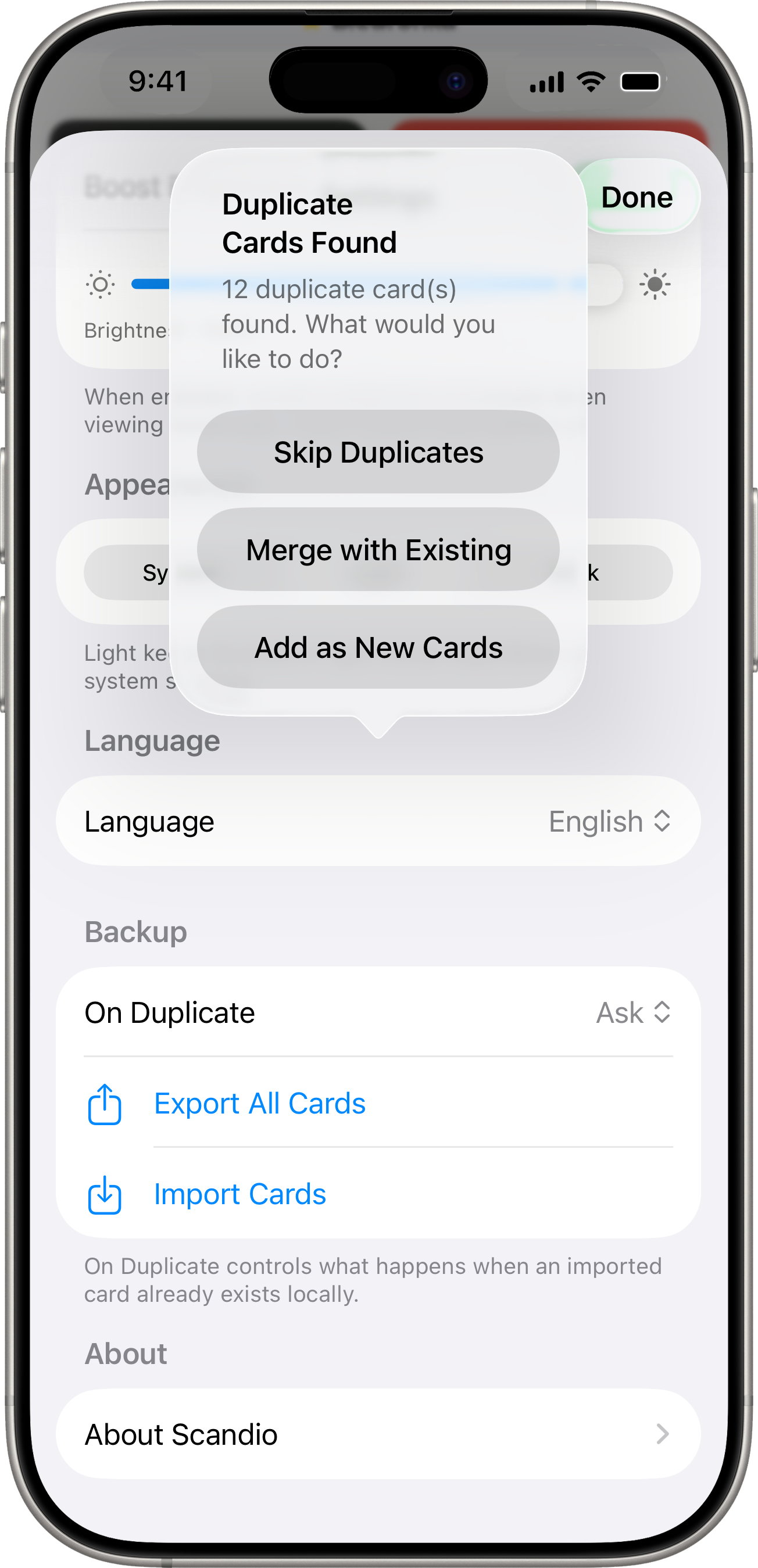
If your backup contains cards that already exist (matching by name + number), Scandio shows a confirmation dialog:
- Skip Duplicates — keep your existing cards, ignore the imported copies.
- Merge with Existing — overwrite your card’s barcode type, colour, icon, sort order, favourite flag and photo with the values from the backup. Your local “last used” date is preserved.
- Add as New Cards — add the imports alongside the existing cards (you’ll end up with two).
If you always want the same answer without the dialog, set it as the default in Settings → Backup → On Duplicate (Ask / Skip / Merge / Add as new).
File format
.scandiobackup files are versioned JSON. Logos are base64-encoded inside the file, so a single backup is fully self-contained — no external photo references. The format is documented in the open-source repository.